
Overview
This guide shows you how to install your ConnectLoop AI agent on a website built with Hostinger Website Builder using the built-in custom code integration feature.
No coding experience is required. This method works across all Hostinger Website Builder sites.
Prerequisites
Before you begin, make sure you have:
- Access to your website's HTML file or template editor
- Your ConnectLoop embed code, e.g.:
<script
  src="https://agents.connectloop.ai/widget.js"
  data-company-id="your-company-id">
</script>
Get your ConnectLoop embed code
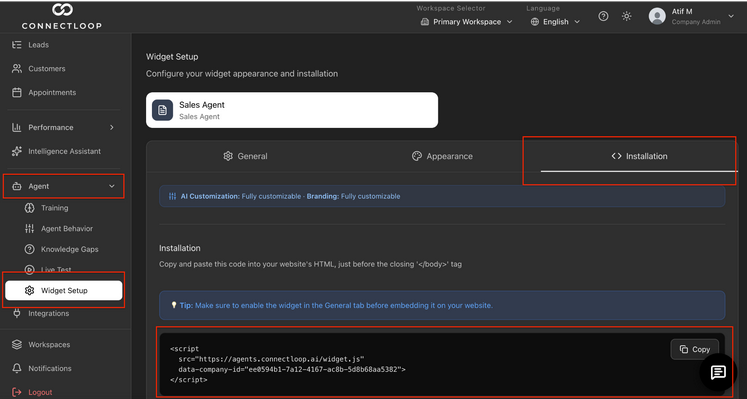
Step 1: Open Your Website Builder
Log in to your Hostinger account and open your website in the Website Builder editor.
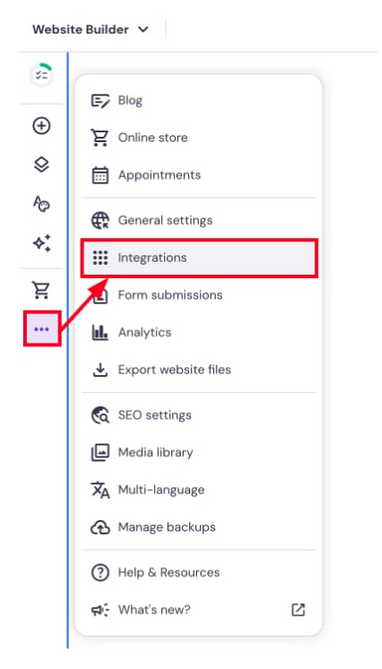
Step 2: Go to Website Settings
Inside the builder:
- Click Website Settings
- Click Integrations
Step 3: Add Your ConnectLoop Code
Locate the Custom Code field.
- Paste your full ConnectLoop embed code into this field
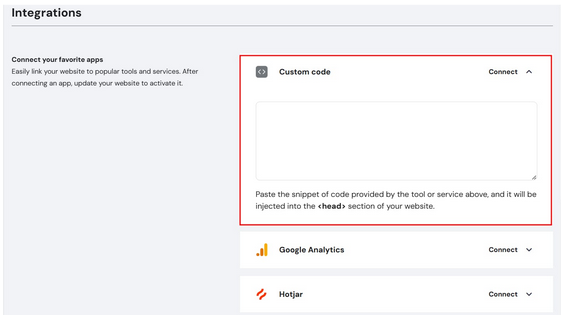
Make sure you paste the entire code exactly as provided and do not modify it.
If you already have other scripts in this field:
- Paste the ConnectLoop code on a new line
- Do not place it inside another script
Step 4: Save and Update Your Website
- Click Save
- Click Update / Publish website
This step is required for the code to go live.
Step 5: Verify Installation
- Open your website in a new tab
- Refresh the page
You should now see your ConnectLoop widget appear on your site.
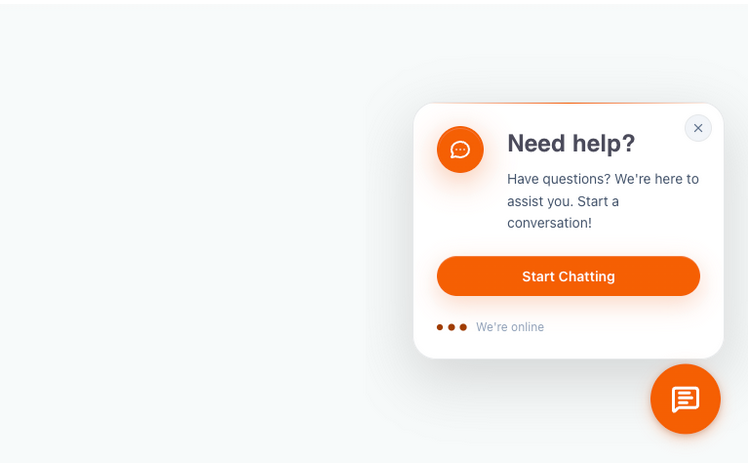
What Success Looks Like
- The widget appears on your website
- You can open it and start a conversation
- Leads and conversations begin appearing in your ConnectLoop dashboard
Common Issues & Fixes
The widget is not showing
Check the following:
- The code is pasted correctly and completely
- You clicked Save and updated/published your website
- You are viewing the live site, not the editor
Changes are not appearing
This is usually because the site was not updated:
- Click Update / Publish in the builder
- Refresh your website
Important Notes
- Custom code added in Hostinger is applied to the
<head>section of your website - Changes will not appear inside the editor, only in preview mode or on the live site
- You only need to install this once
Need Help?
If you run into any issues, try chatting with our guide agent inside the portal. You can also reach out to our support team at [email protected], and we'll help you get everything set up.
If you need more detailed guidance on using Hostinger Website Builder, you can also refer to: