
Overview
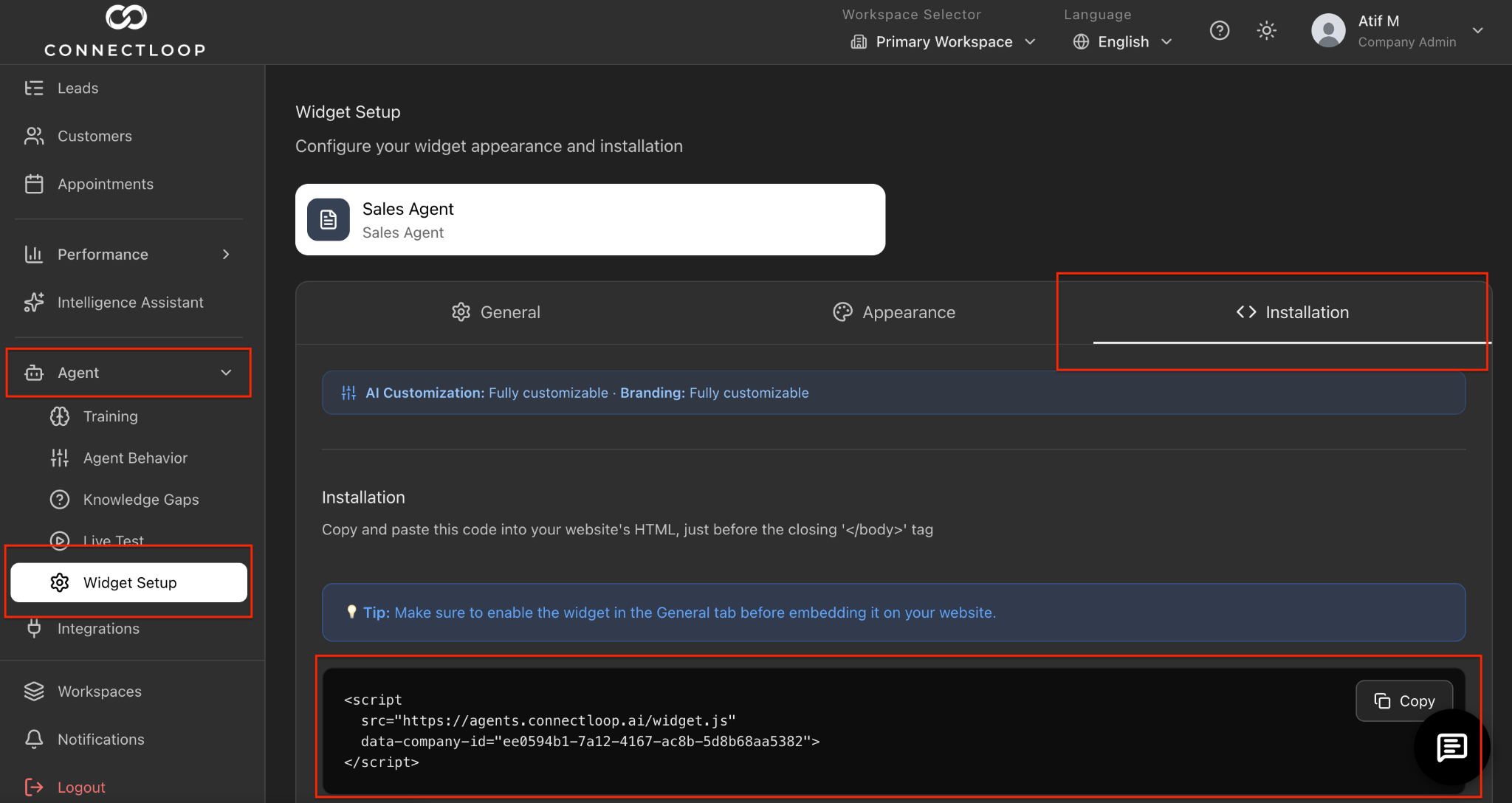
This guide shows you how to install your ConnectLoop AI agent on a Shopify store by adding the ConnectLoop embed code to your Shopify theme.
No coding experience is required. This method works for most Shopify themes.
Prerequisites
Before you begin, make sure you have:
- Access to your Shopify admin dashboard
- Your ConnectLoop embed code, e.g.:
<script
  src="https://agents.connectloop.ai/widget.js"
  data-company-id="your-company-id">
</script>
Get your ConnectLoop embed code
Step 1: Log in to Shopify
Go to your Shopify admin dashboard:
yourstore.myshopify.com/admin
Enter your login details and access your dashboard.
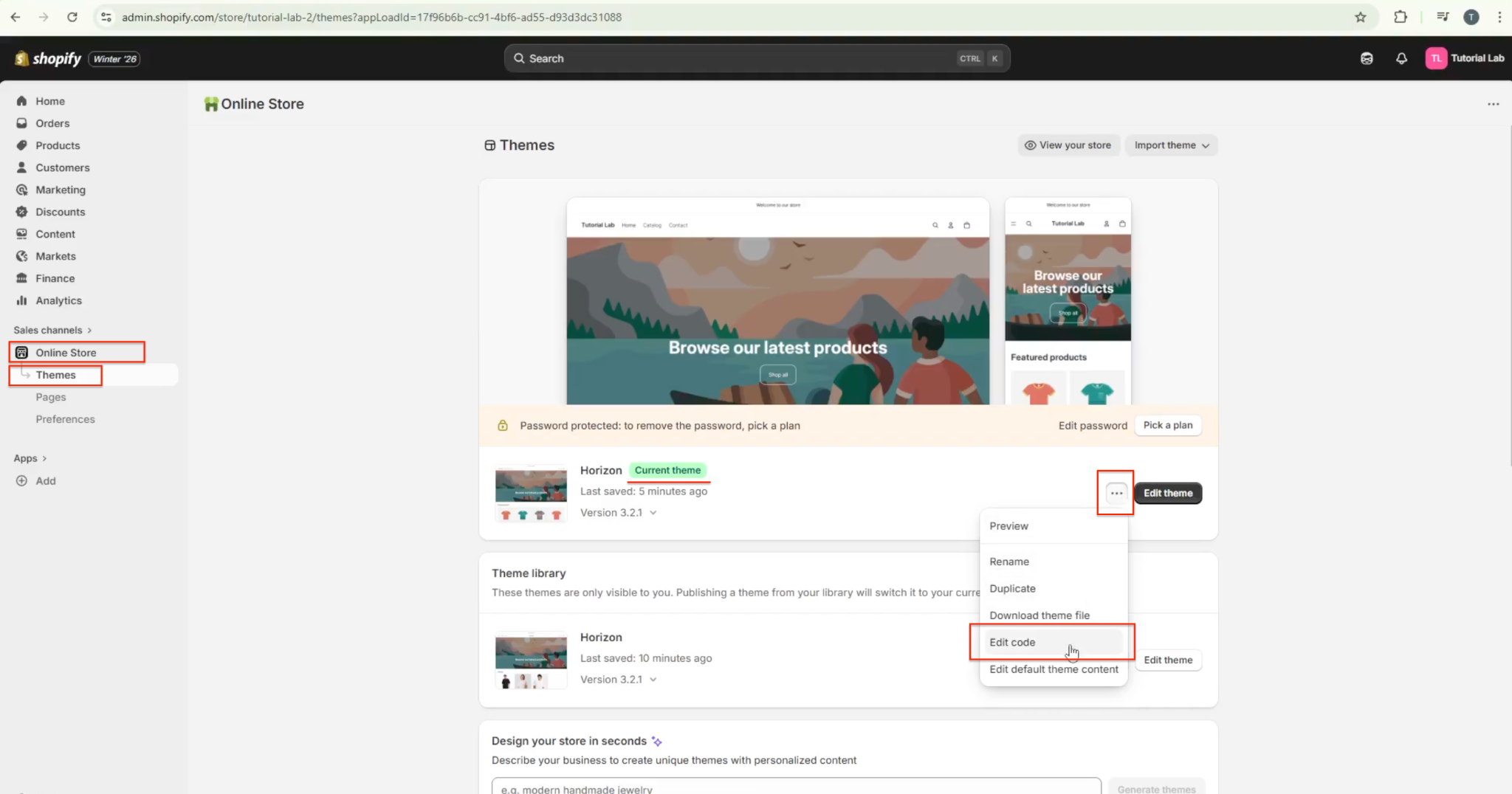
Step 2: Open Your Theme Settings
In the left sidebar, click:
Online Store → Themes
Find your active theme. Click the three dots button (...) next to Customize, then click Edit code.
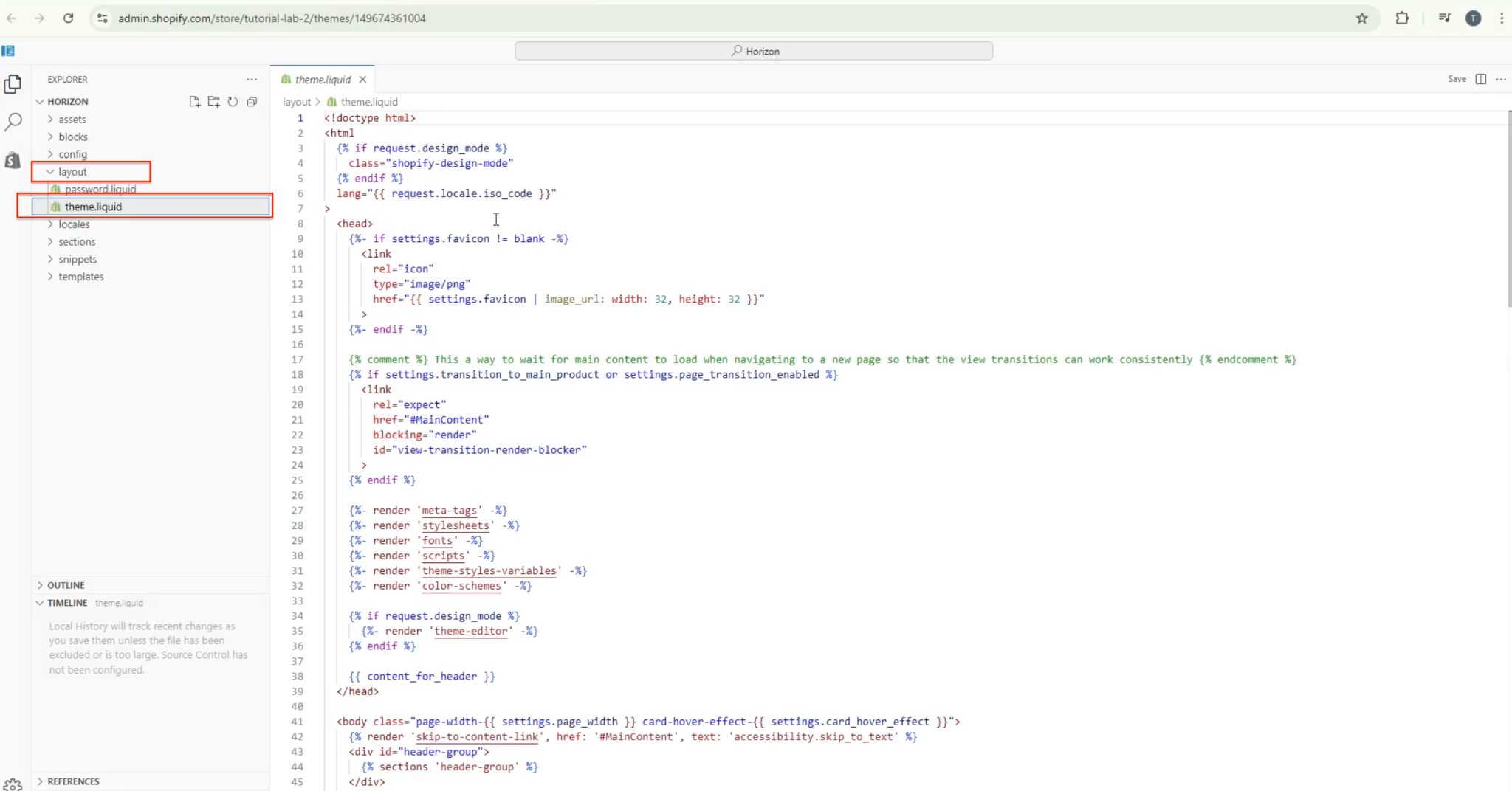
Step 3: Open the Theme Layout File
In the left sidebar under Layout, click:
theme.liquid
This is the main template file used across your Shopify store.
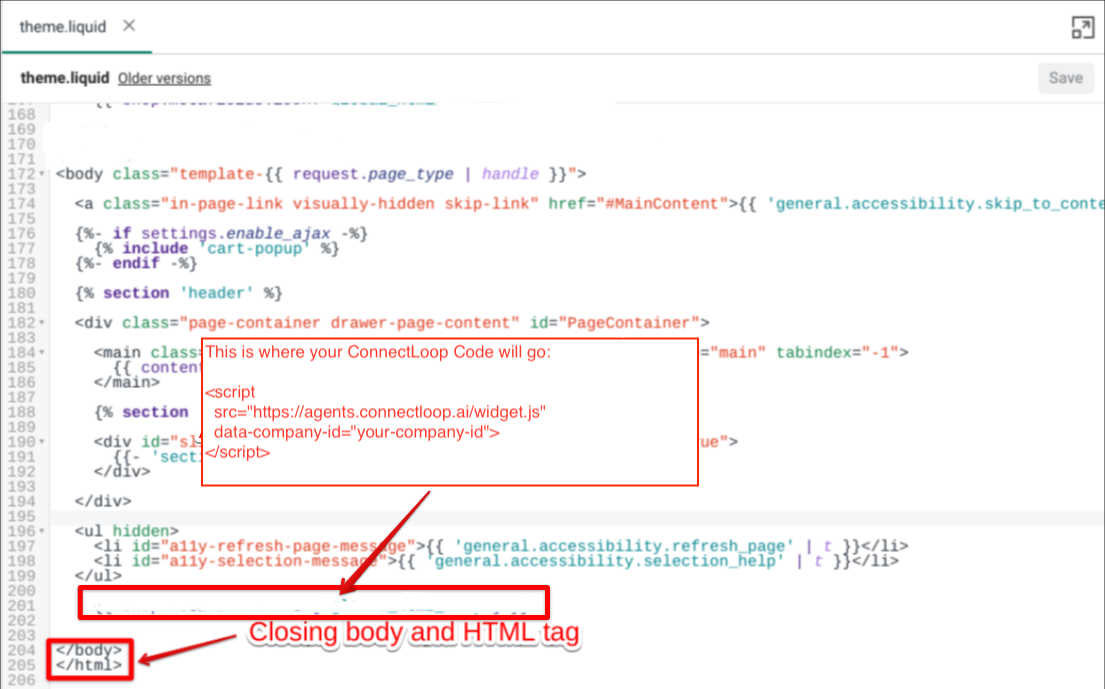
Step 4: Locate the Closing </body> Tag
Scroll to the bottom of the file and find the closing </body> tag.
Step 5: Paste Your ConnectLoop Code
Paste your full ConnectLoop embed code directly before the closing </body> tag.
Example:
...
<!-- Other Shopify theme code -->

<script
  src="https://agents.connectloop.ai/widget.js"
  data-company-id="your-company-id">
</script>

</body>
Make sure you paste the entire code exactly as provided and do not modify it.
Step 6: Save Your Changes
Click the Save button in the top right corner.
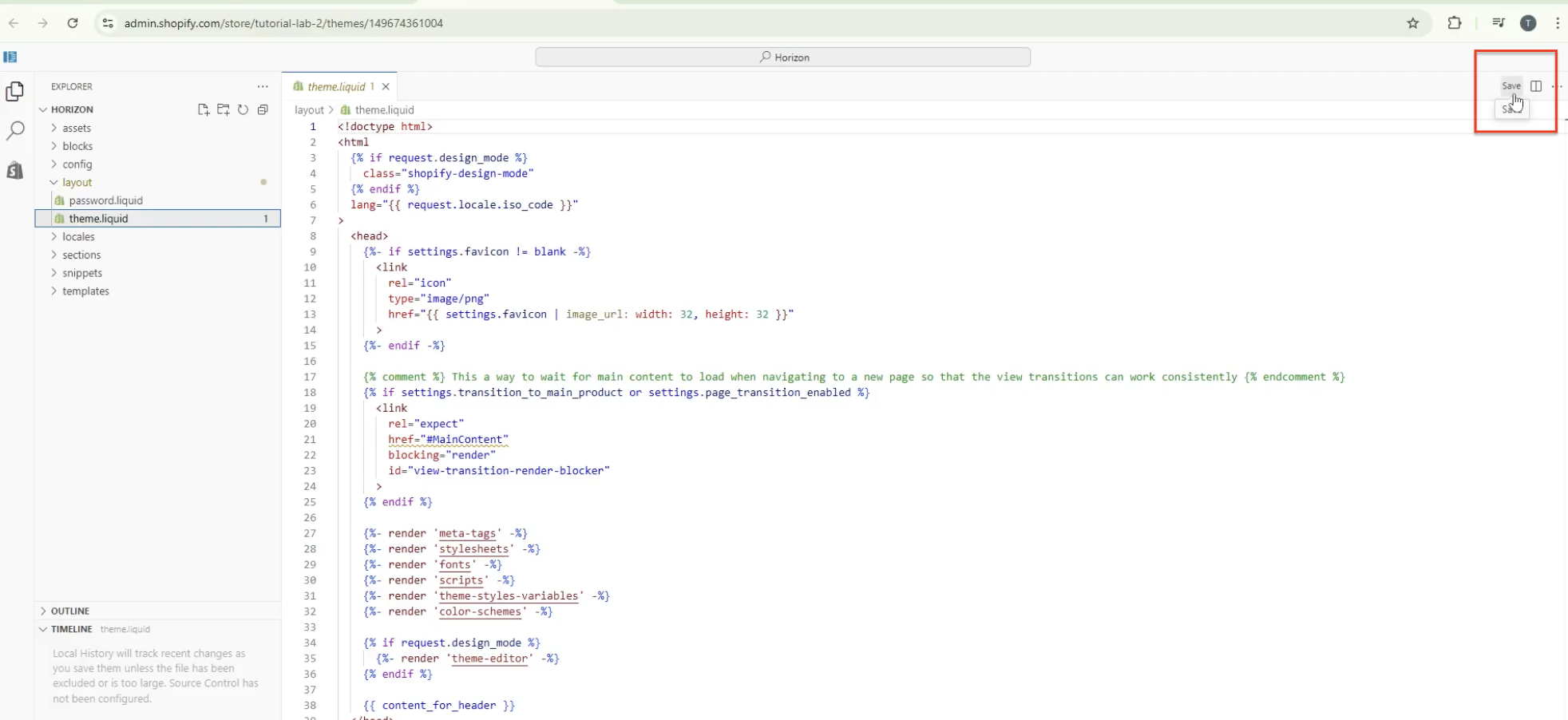
Your ConnectLoop widget is now installed on your Shopify store.
Step 7: Verify Installation
- Open your Shopify store in a new tab
- Refresh the page
You should now see your ConnectLoop widget appear on your website.
What Success Looks Like
- The widget appears on your Shopify store
- You can open it and start a conversation
- Leads and conversations begin appearing in your ConnectLoop dashboard
Common Issues & Fixes
The widget is not showing
Check the following:
- The code is pasted before the closing
</body>tag - The code is pasted correctly and completely
- You clicked Save after making changes
- You are viewing the live store, not the theme preview
Changes are not appearing
This is usually caused by caching:
- Refresh the page
- Try opening your store in an incognito window
- Clear your Shopify or browser cache
I cannot find theme.liquid
This usually means:
- You may be using a newer Shopify theme structure
- Or you may not have permission to edit theme files
In this case, contact your Shopify administrator or developer.
Important Notes
- You only need to install this once
- This method works for most Shopify themes
- No advanced coding knowledge is required
- Updating your theme may require reinstalling the code if the theme is replaced completely
Need Help?
If you run into any issues, try chatting with our guide agent inside the portal. You can also reach out to our support team at [email protected], and we'll help you get everything set up.
If you need more detailed guidance on editing Shopify theme code, you can also refer to: